

Maps Management
- The Manager app only shows maps from linked headsets (more info: Add and Link Headsets).
- Maps are stored per location, and the managers of that location have access to them. The Manager app shows the maps of the location selected in Settings → General → Location, so maps from your other locations do not appear there (more info: Maps, headsets and images across locations).
- Each map is assigned a unique ID, even if multiple maps share the same name.
- If several headsets contain maps with the same name, they will all appear in the Manager app.
- These are not duplicates — you can differentiate them by author and last edit timestamp.
- Removing a map in the Manager app deletes it from the location, but not from the headset.
- To add it back to the location, simply open and save the map again on the headset.
Community Maps & Tools
Section titled “Community Maps & Tools”- Community maps are also listed on the web at mod.io. Browse them there for inspiration — but note that filtering by room size is only available in the Online Map Library inside the Spatial Ops app (see below).
- Once you are comfortable making maps for your own space, there is a community-built web map editor: OpsForge, developed by Sir Rorick and based on earlier work by Kropek.
Downloading and Using Maps from Online Map Library
Section titled “Downloading and Using Maps from Online Map Library”Aside from the maps created on your organization’s headsets, you can download maps shared by the community through the Online Map Library. Where you open the library depends on your headset platform.
On one of your headsets, ideally one of the already linked headsets:
-

Go to Map Editor and locate the Online Map Library by pressing the button on the upper right corner of the panel.
-
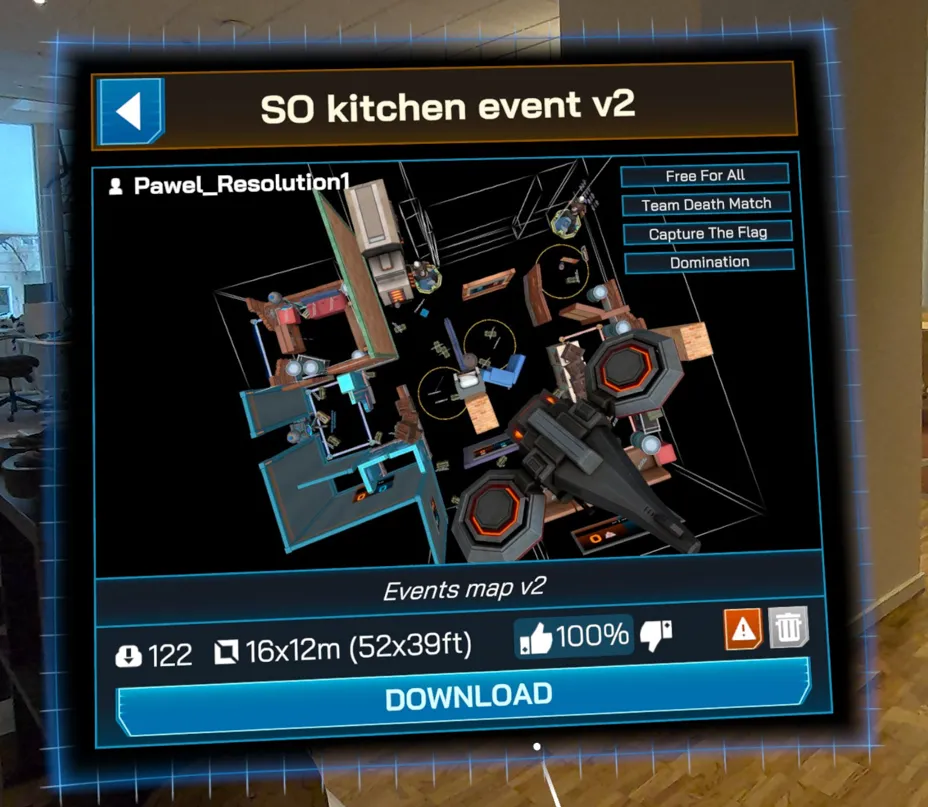
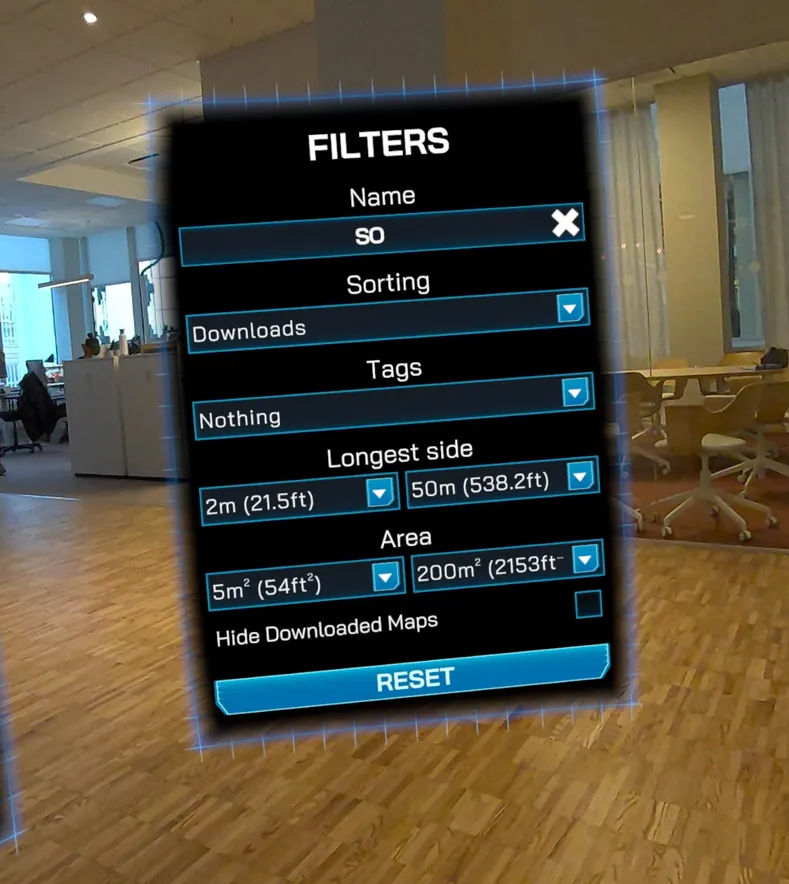
From there you could choose different maps uploaded by various map creators. The search could be filtered based on the map name, tags and size.
-
When a map is chosen and downloaded, you still need to edit that map to realign or to set up spatial markers. For more information: Setting Up Spatial Markers
-
Similar when making your own maps, once the downloaded map is edited and saved, it will be synchronized with the Manager app and becomes part of your location’s maps.
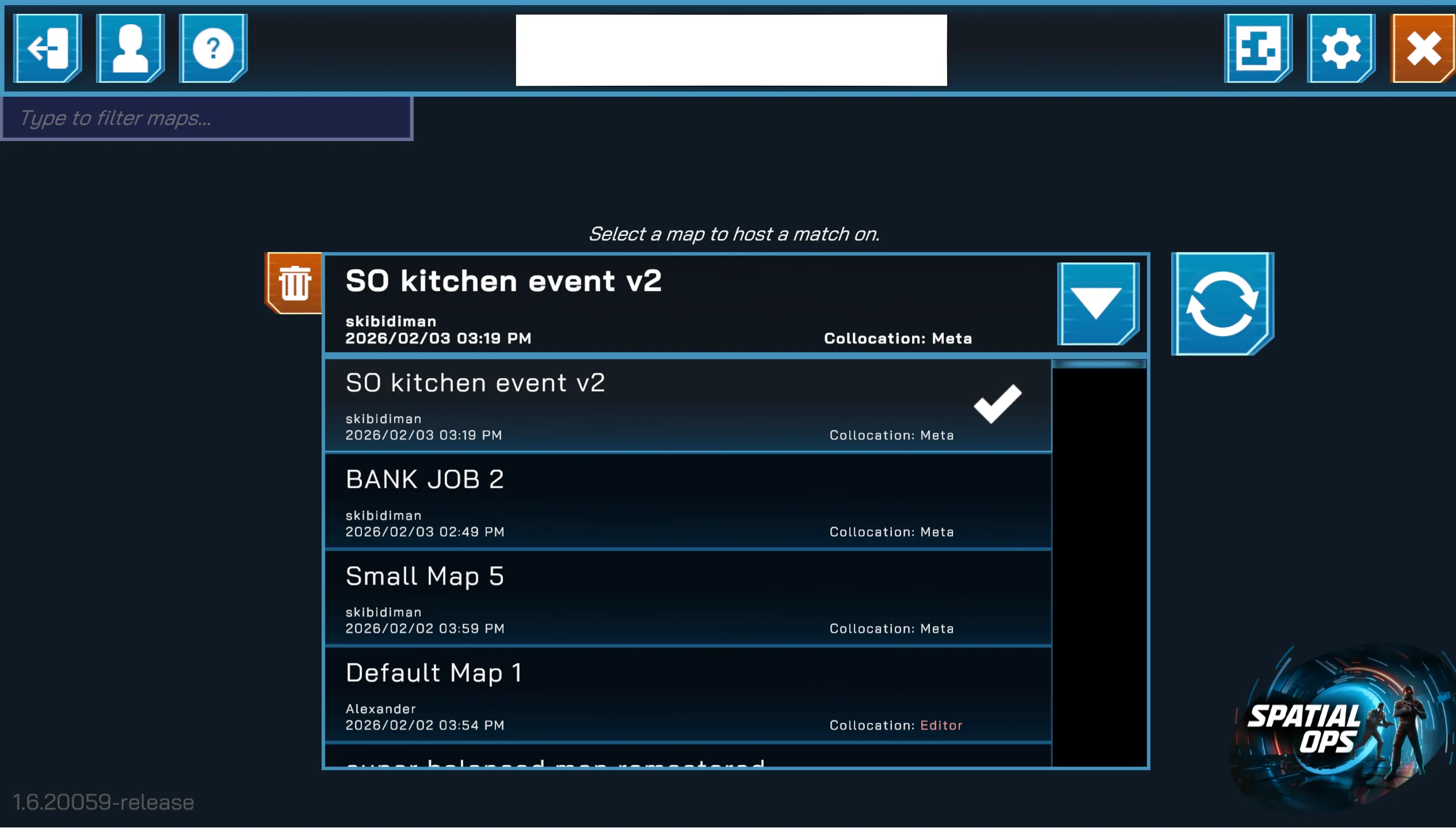
On PICO Enterprise you browse the library from the Manager app, then align the downloaded map on a headset.
-
In the Manager, open the Online Map Library.
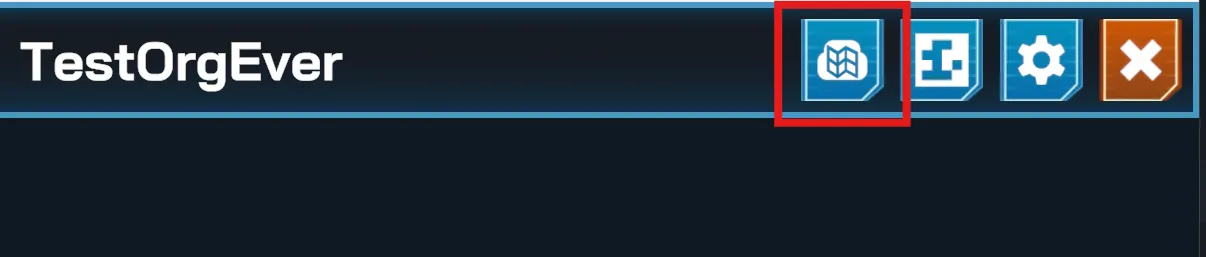
-
Browse and select the map you want.
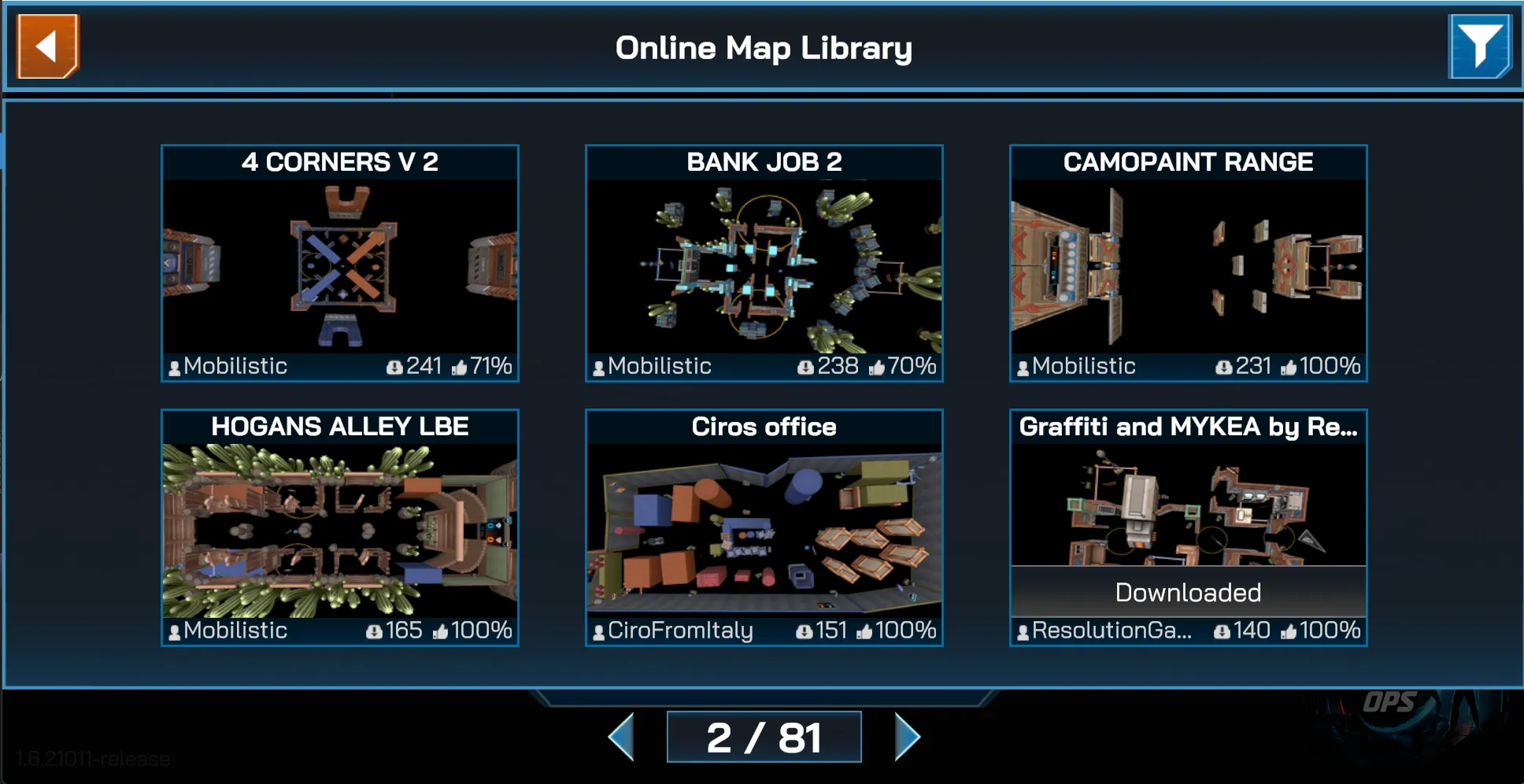
-
Download it. The map syncs to your location’s map list.
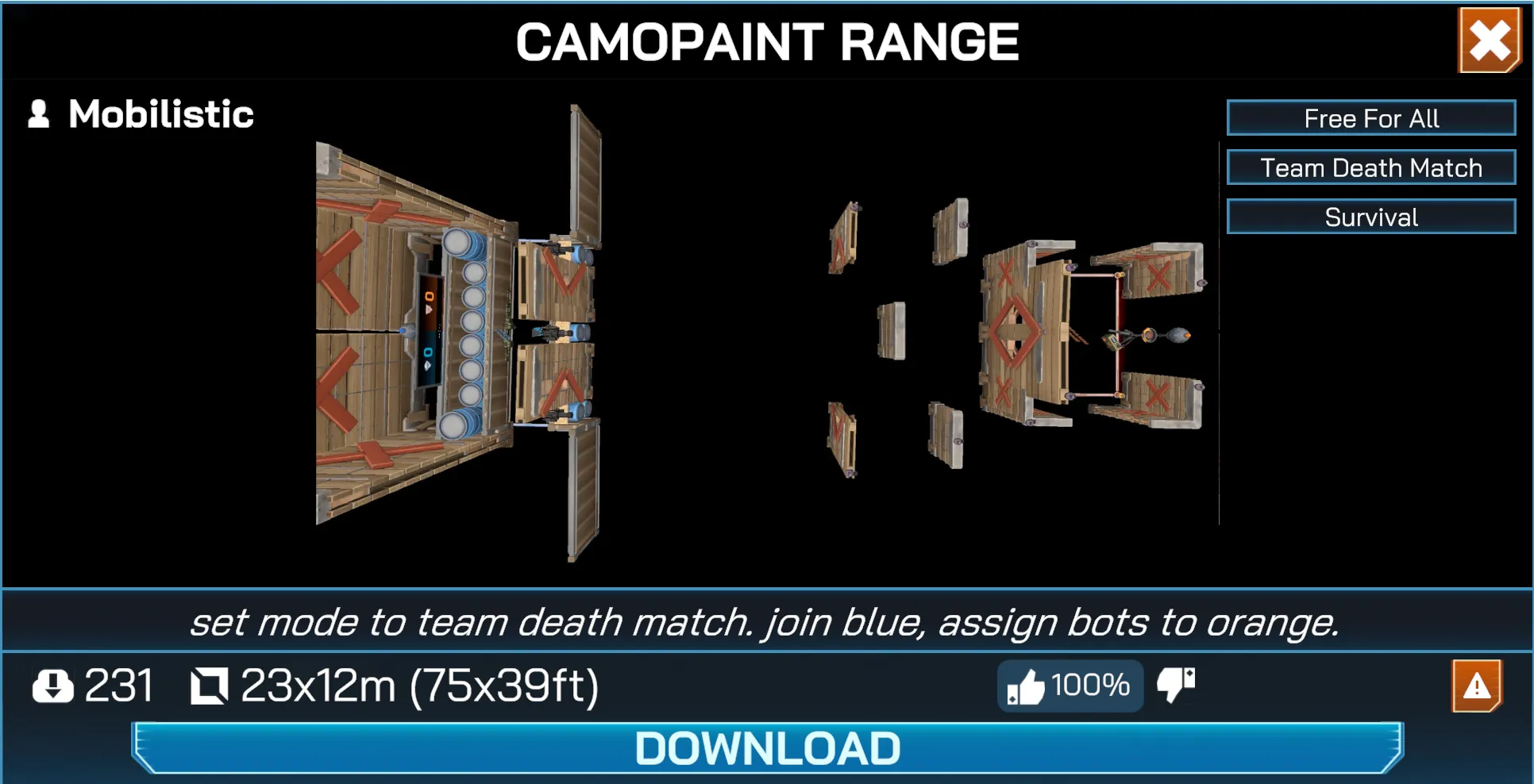
-
The map is not playable yet — it was built for someone else’s room and needs aligning to yours. On one of your headsets, open the Map Editor and press DOWNLOAD ALL to sync with your location’s map list.
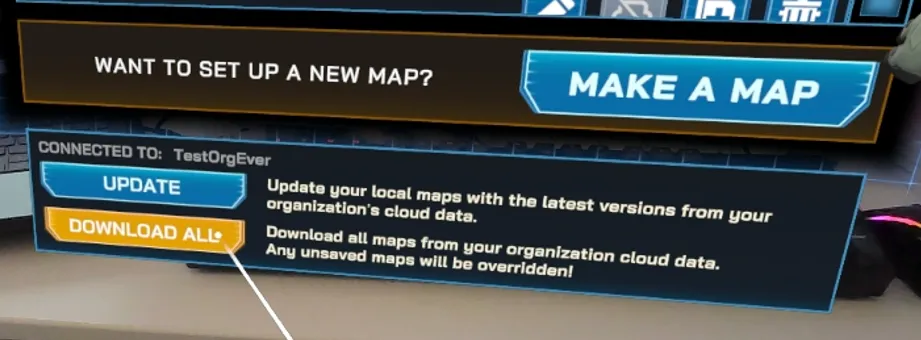
-
Select the downloaded map for editing.
-
Press REALIGN and manually align the map to your physical space, then SAVE.
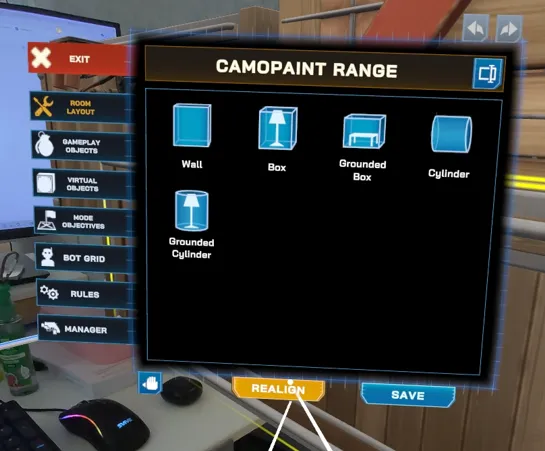
The realigned map syncs back to your location and is ready to use in a session.