

Send a Bug Report
When something goes wrong — a headset drops out of a match, the game freezes, a map loads in the wrong place — send a bug report. It sends the app’s log to the development team, with a few words from you if you want to add them. You can send it from the Manager app and from each headset.
Why logs matter
Section titled “Why logs matter”A log is a record the app keeps as it runs: connecting to the network, loading a map, starting a match, and any error along the way. It shows what the app was doing when the problem happened and which step failed, and often that alone is enough to find the cause.
Many problems depend on your network, your headsets or your arena, and can’t be reproduced elsewhere. The log from your own device is often the only way to find the cause, and so to fix it.
From the Manager app
Section titled “From the Manager app”-
Open the Settings menu. It is available from the Main Menu and during a session.
-
Select Help.
-
Next to Send Bug Report, select Report.
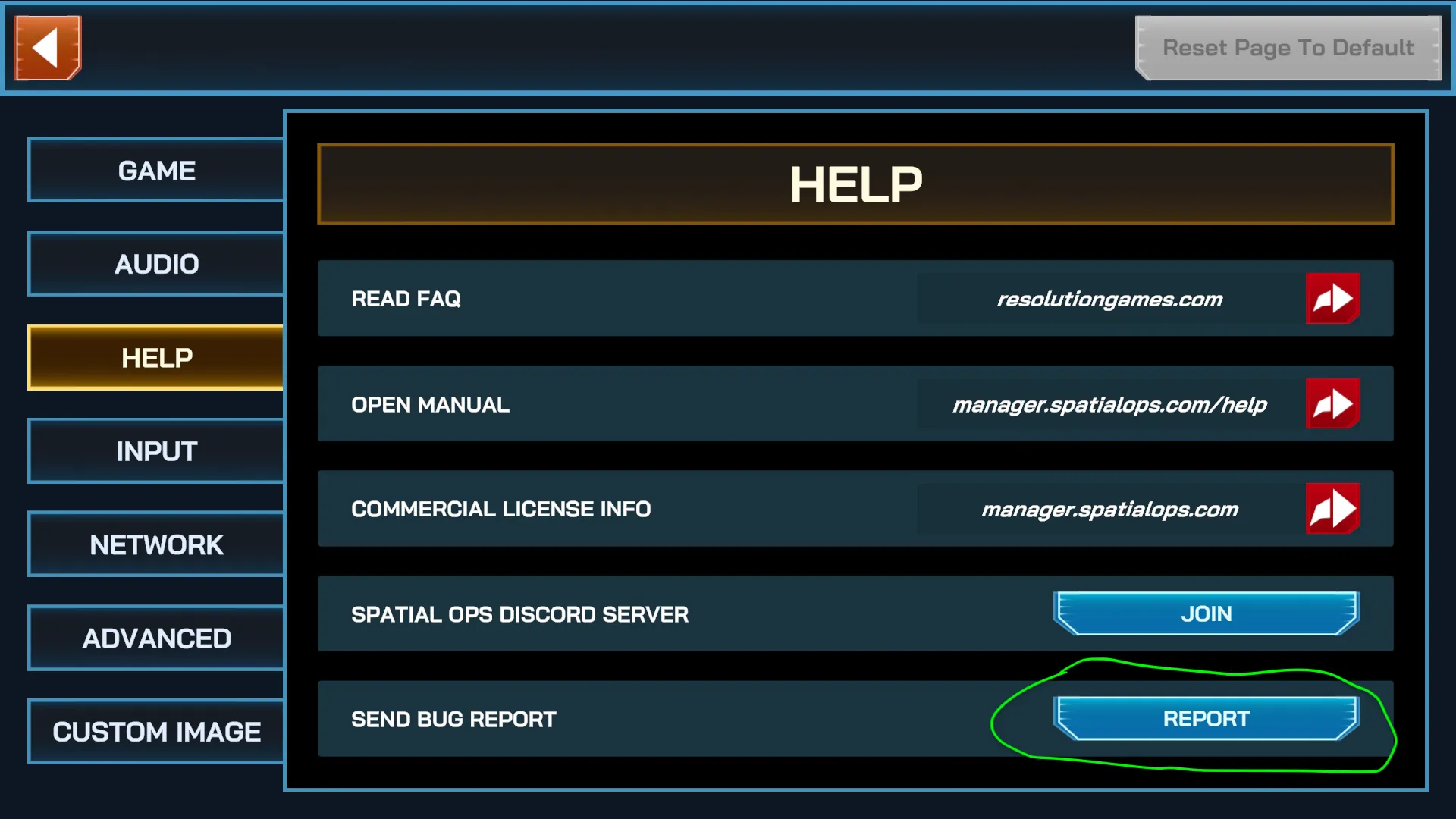
-
If you like, type a few words about the issue, and your email address if you’d like a reply.
-
Select Send. A short “Thank you.” message confirms the report was sent, and the form closes.
From a headset
Section titled “From a headset”A problem on a player’s headset is recorded in that headset’s log, not on the Manager PC, so send the report from the headset itself.
-
Press the menu button on the left controller. The menu appears at your left hand; point and select with the right controller.
-
Select the gear icon to open the settings. On the Arena screen there is no gear icon: go back to the main menu first.
-
Select Help.
-
Next to Send Bug Report, select Report.
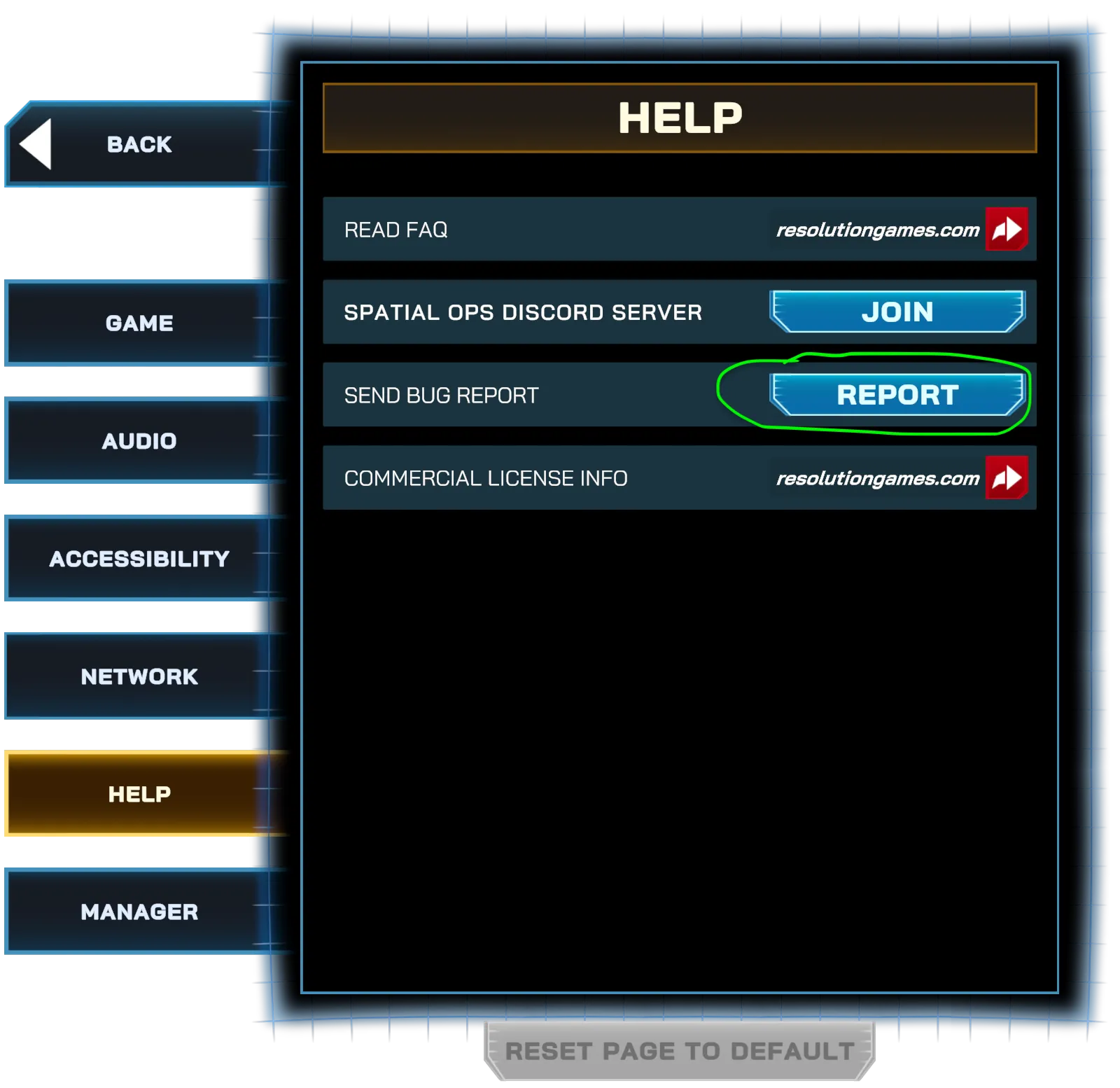
-
If you like, type a few words about the issue, and your email address if you’d like a reply.
-
Select Send.
Make the report useful
Section titled “Make the report useful”- Send it right after the problem, before closing the app or taking off the headset. A report holds only the log of the app’s current run: once the app is closed or restarted, the problem is no longer in the report. It also holds only the most recent part of that log, so after a long session the problem may already be out of it.
- Send it from the device where the problem happened. If you aren’t sure whether the cause was the headset or the Manager app, send a report from both.
- For a subtle problem, add a few words. When the issue is hard to spot in a log, type a short note such as “score froze round 2”. Mention the same words in an email to licensing@spatialops.com or a message on the Spatial Ops Discord server, and the team can find your report by them. Only the first 20 characters are used for this, so keep the note short, or put its key words first.
If sending fails
Section titled “If sending fails”The report needs an internet connection at the moment you send it. If the form shows Connection Error. or Something went wrong, the report was not sent, and it won’t be retried later. Check the connection and send it again. Any words you typed are cleared, so you’ll need to type them again.
If the Manager app was restarted
Section titled “If the Manager app was restarted”When the Manager app has been closed or restarted since the problem, a report no longer contains
it. The PC still keeps the log of one earlier run, in a file named Player-prev.log (the current
run is Player.log):
- Windows:
%USERPROFILE%\AppData\LocalLow\Resolution Games\Spatial Ops\— paste it into the address bar of File Explorer. - macOS:
~/Library/Logs/Resolution Games/Spatial Ops Manager/— in Finder, choose Go > Go to Folder and paste it.
Attach Player-prev.log to an email to licensing@spatialops.com
or to a message on the Spatial Ops Discord server. It goes back only one run:
the next restart overwrites it. Headsets keep no log of an earlier run.
Automatic reports
Section titled “Automatic reports”The Manager app, and headsets linked to your organization, also send a report on their own when an error message appears. Many problems show no error message, so when you notice one, send a report yourself as well.