

Add and Link Headsets
Linking your headsets to your organization unlocks advanced features within Spatial Ops Manager:
- Auto-join — headsets automatically join hosted sessions
- Map synchronization — all maps stored on a linked headset are automatically available in the Manager app, at the headset’s location
- Live headset status — monitor connectivity, battery level, and controller status in real time
- Launch and Quit Game — launch and quit Spatial Ops on the headset directly from the Manager app. Learn more.
- More features coming in future updates
After authenticating your account, link your headsets to your organization to get started.
Headsets are linked to one location of your organization, not to a specific PC or Manager account — all manager accounts of that location can see and manage the headsets linked to it.
In both cases, linking works the same way: you host a session on a default map, join it from the headset with the room code, and then confirm the headset in the Manager. The details differ per platform.
Linking Procedure
Section titled “Linking Procedure”-
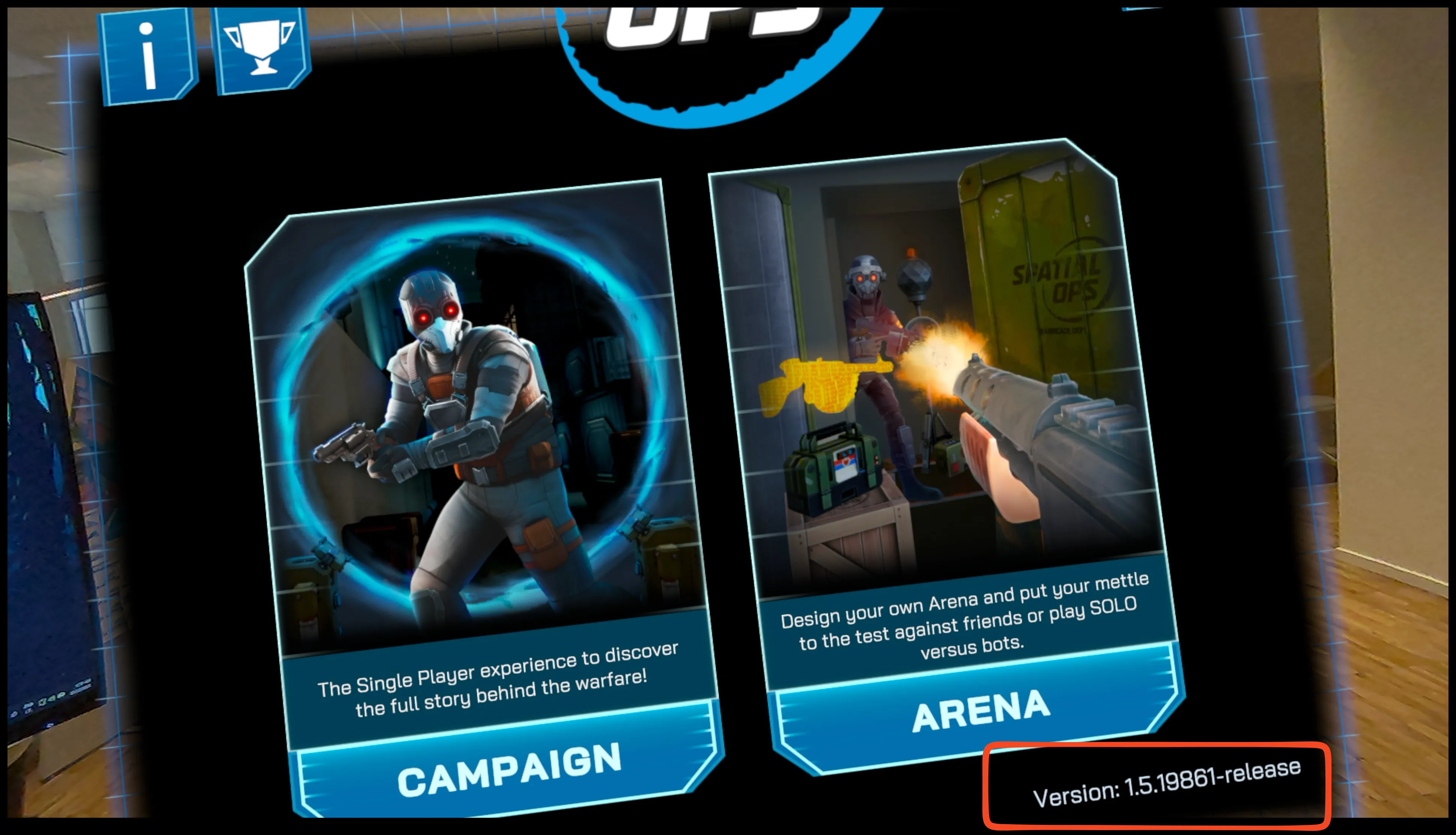
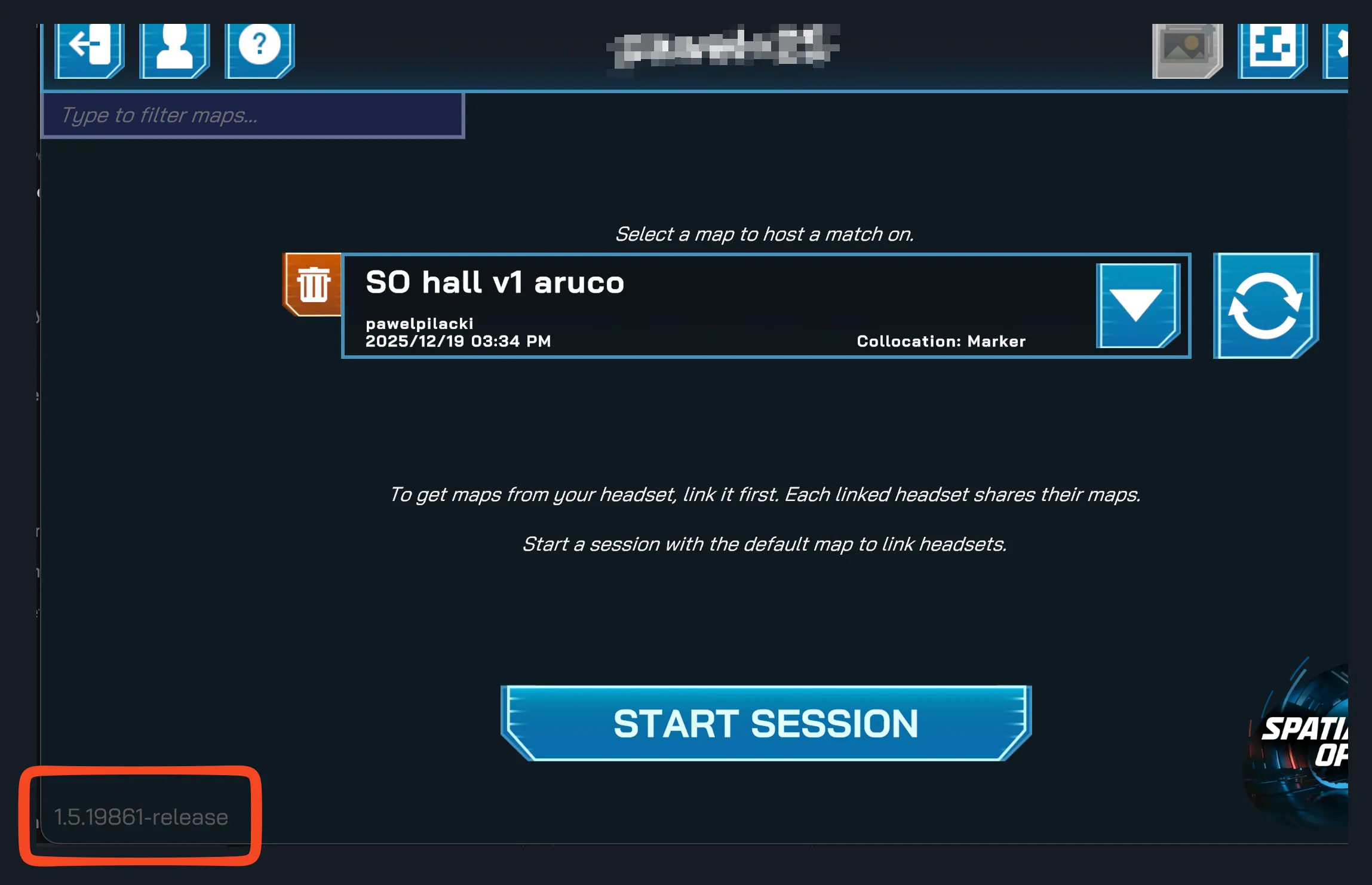
Make sure both Spatial Ops on your headsets and the Spatial Ops Manager app on your PC/Mac are on their latest versions.
- Major and minor versions need to match in order to connect, e.g.,
1.5.xxxxboth on Quest headset and in Manager app. - The revision value can sometimes differ between Manager app and game on headset — but as long as
major.minoris the same, you are good to go (e.g.,1.5.xxxxx).
- Major and minor versions need to match in order to connect, e.g.,
-
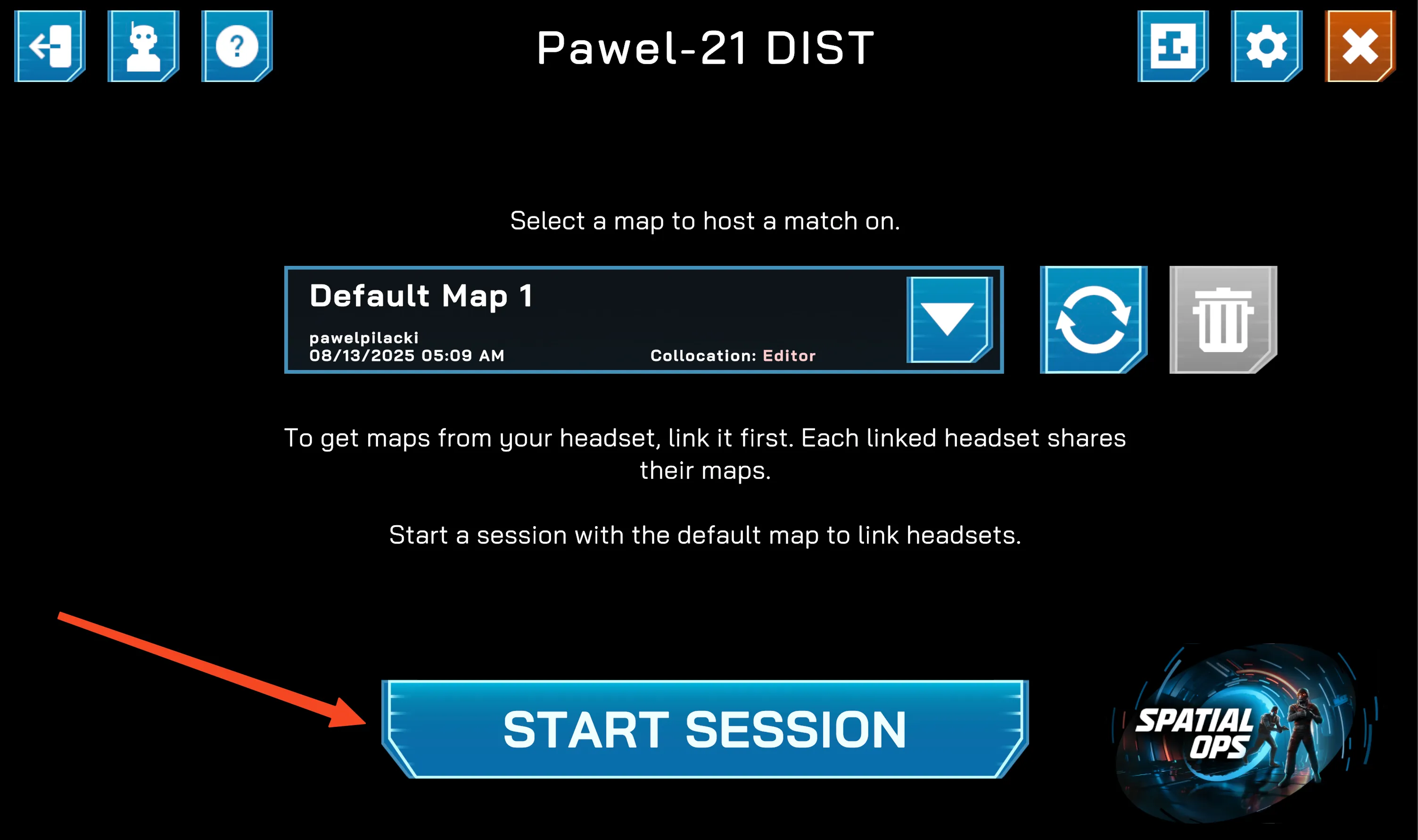
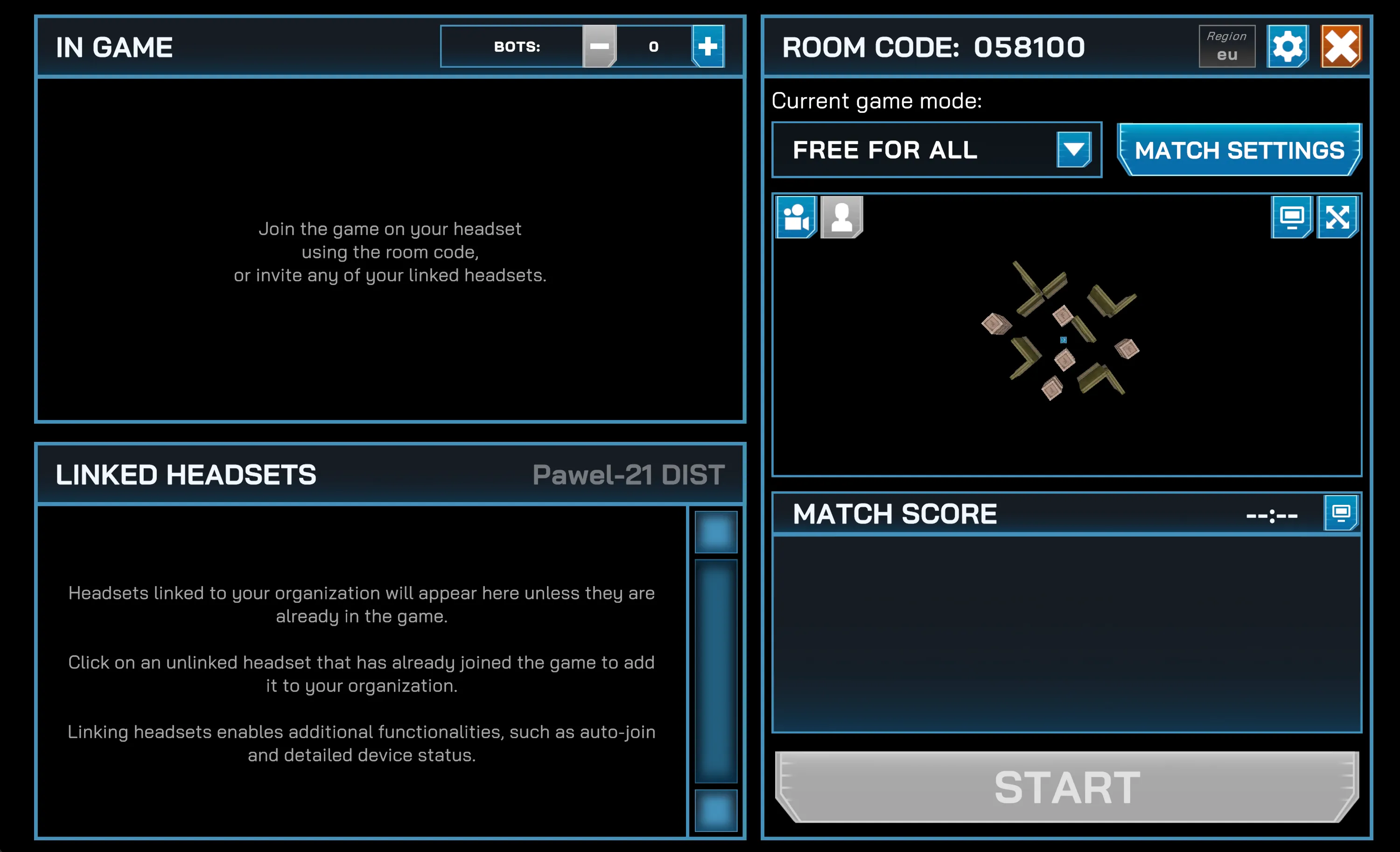
Start a session in the Manager app using the Default map.
-
Launch the Spatial Ops game on your Meta Quest headset.
-
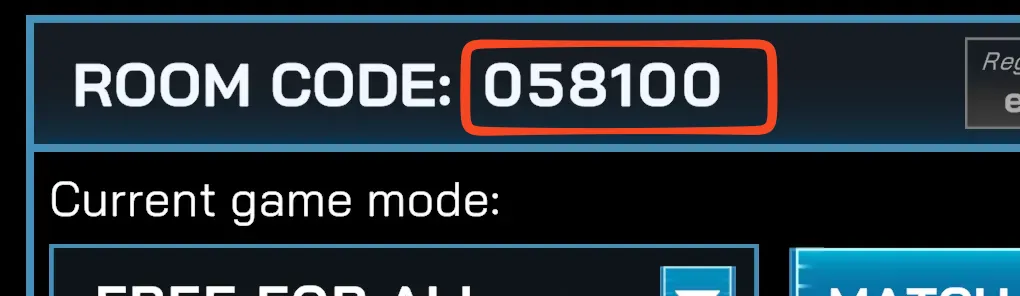
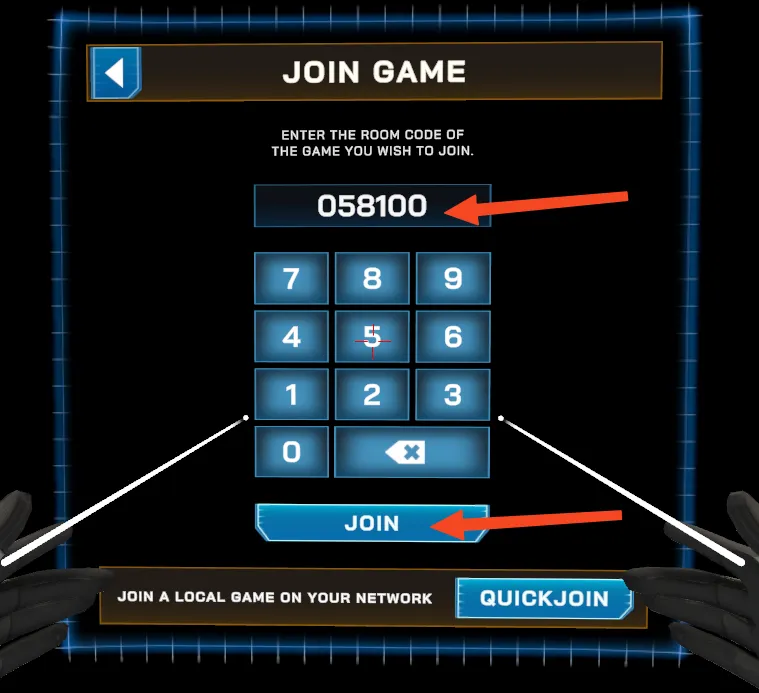
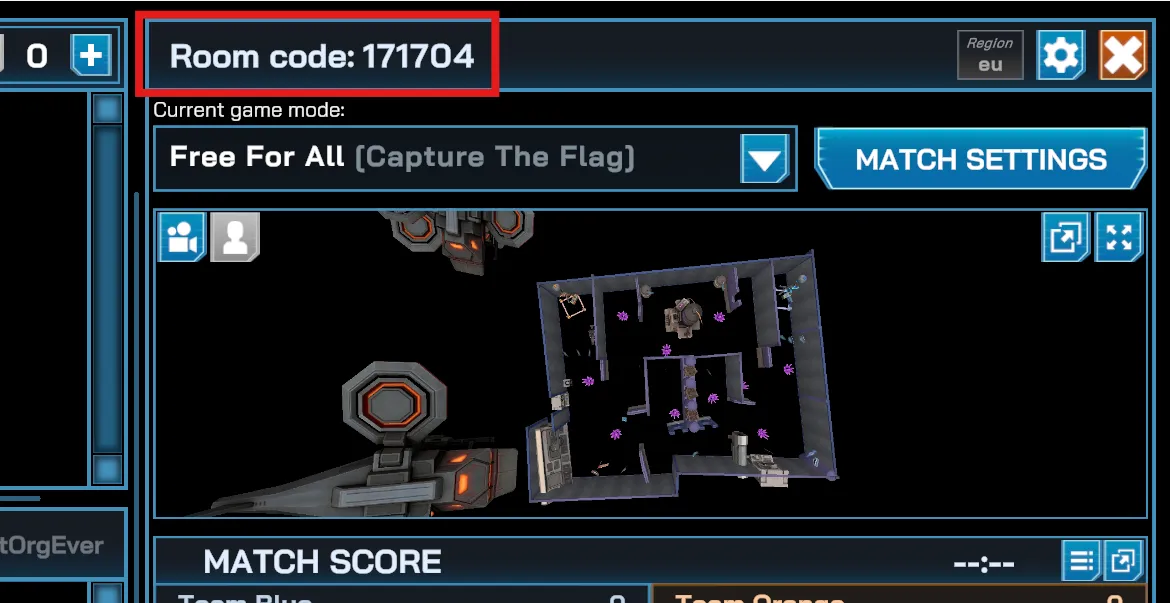
From the headset, join the Manager app using the provided room code. You can find the room code in the Manager app while hosting the session, displayed in the top row.
-
The headset will show you a Space Matching error — you can ignore it, as the default map isn’t used for actual gameplay.
-
-
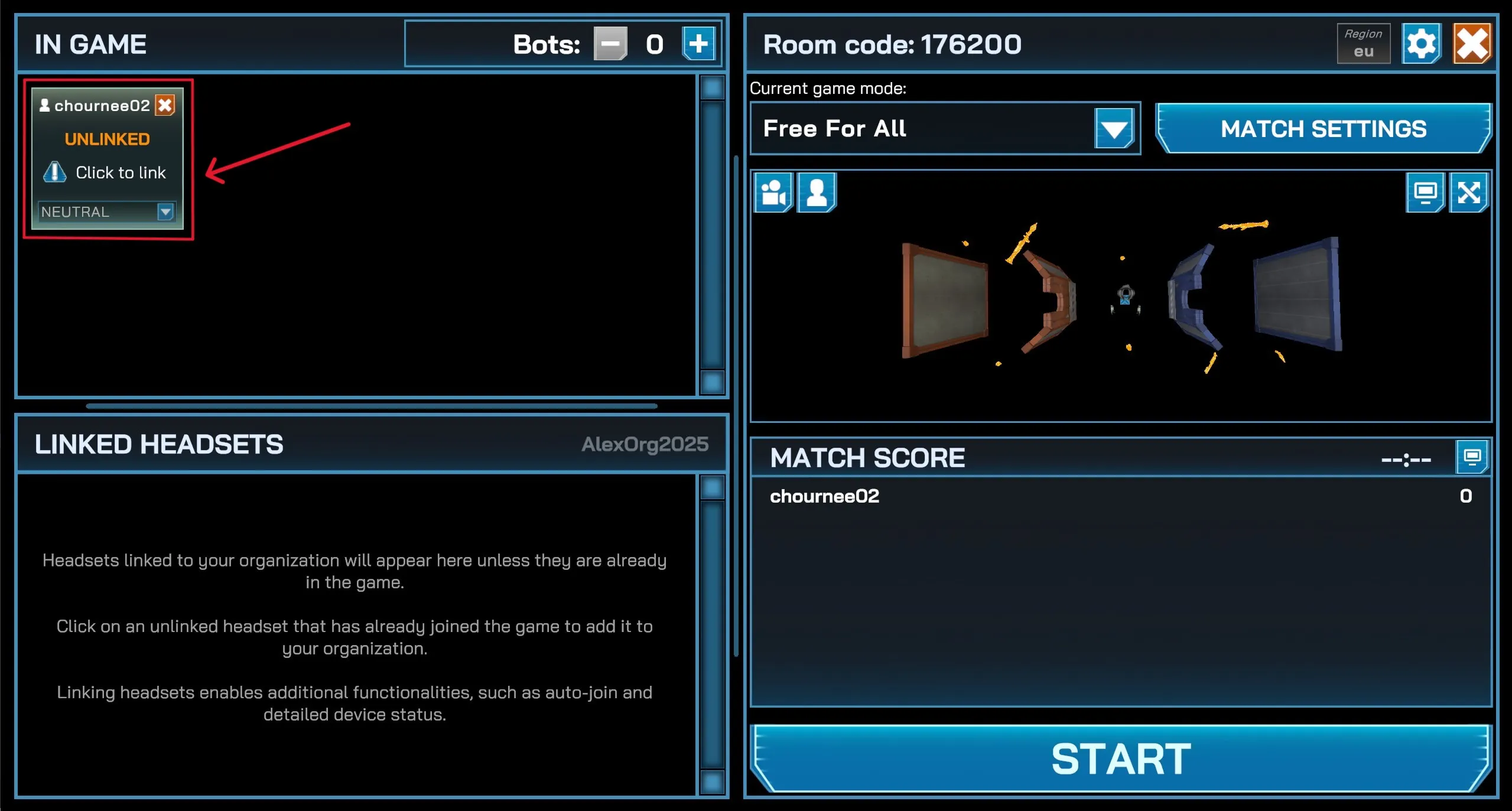
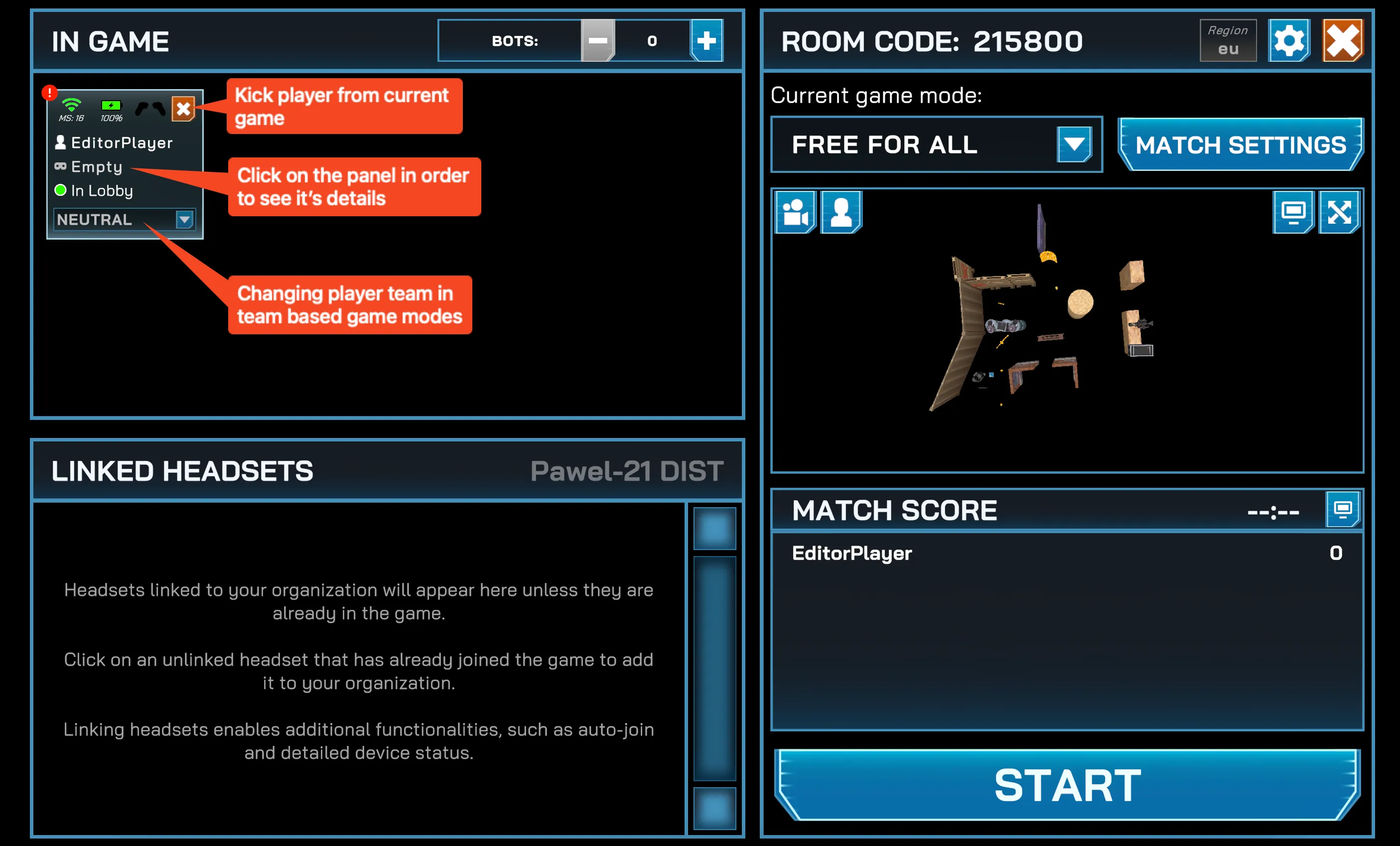
The headset will appear in the Manager app. (Ignore any warnings shown on the headset.)
-
In the Manager app, click the headset panel marked
Unlinkedto add it to your organization. A confirmation pop-up will appear; selectConfirmto finalize the headset link.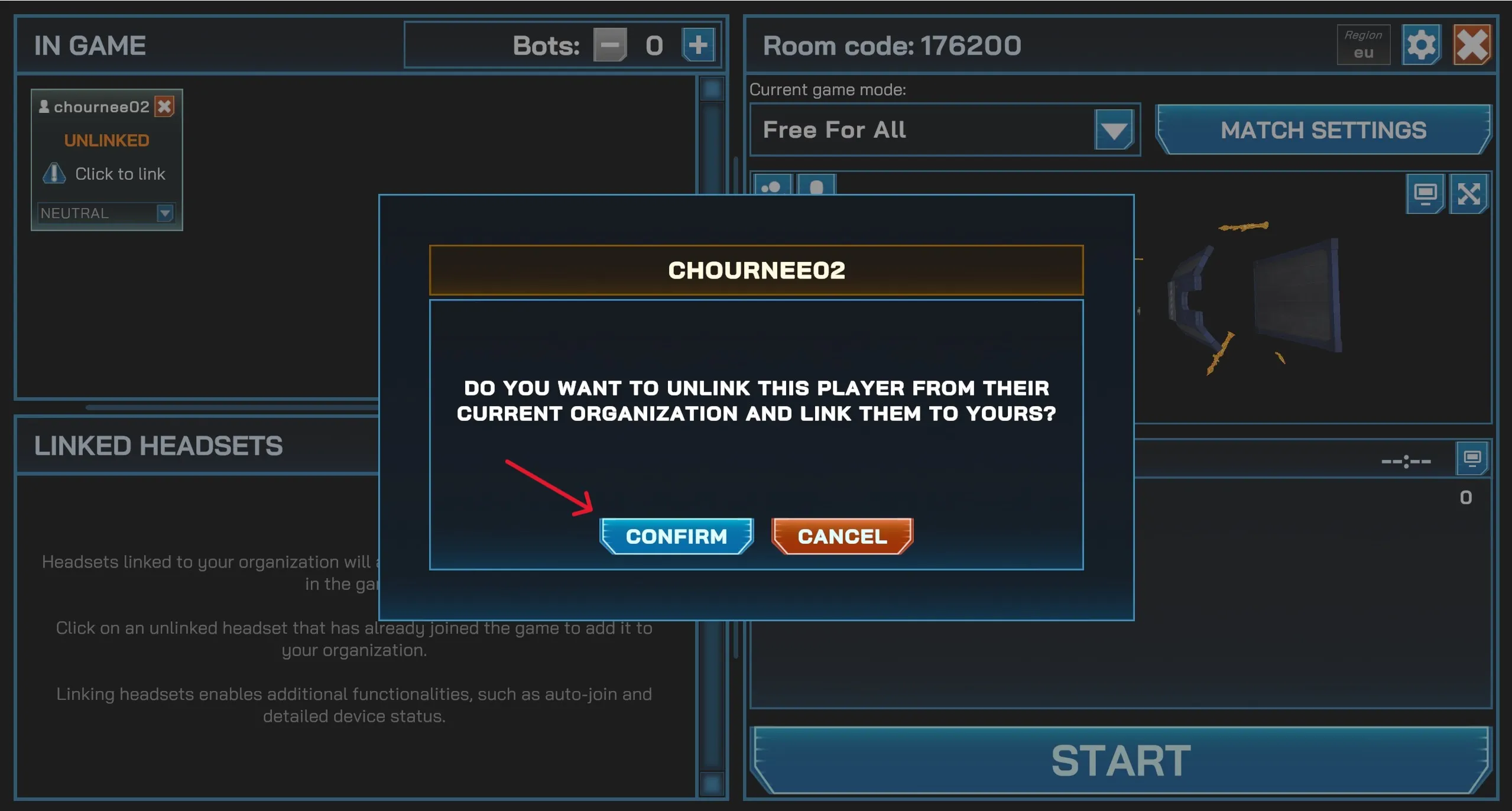
-
Once linked, the headset can be managed directly from the Manager app.
-
Repeat this process for all headsets you want to link. (You can link additional headsets at any time in future sessions.)
-
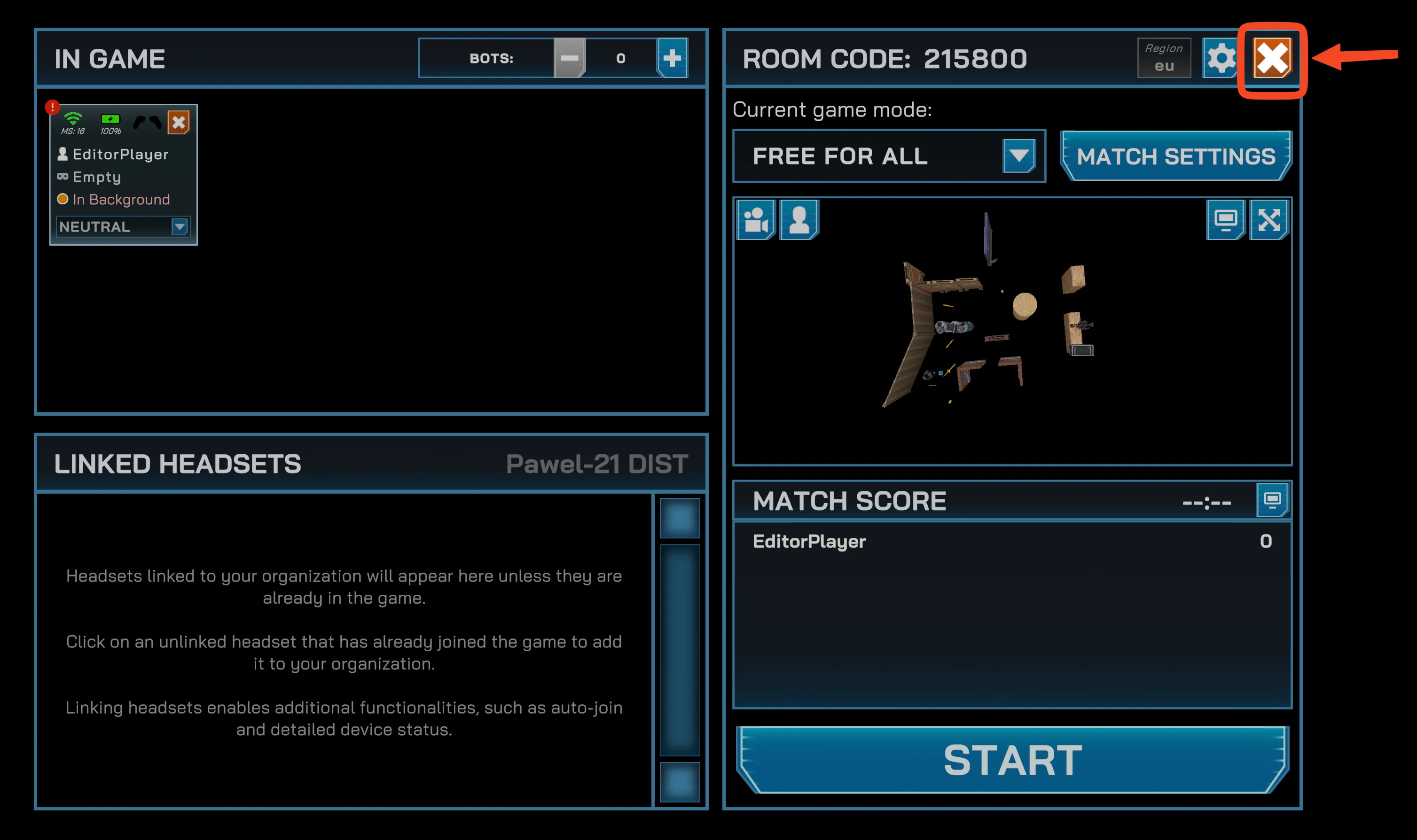
Close the session once linking is complete.
-
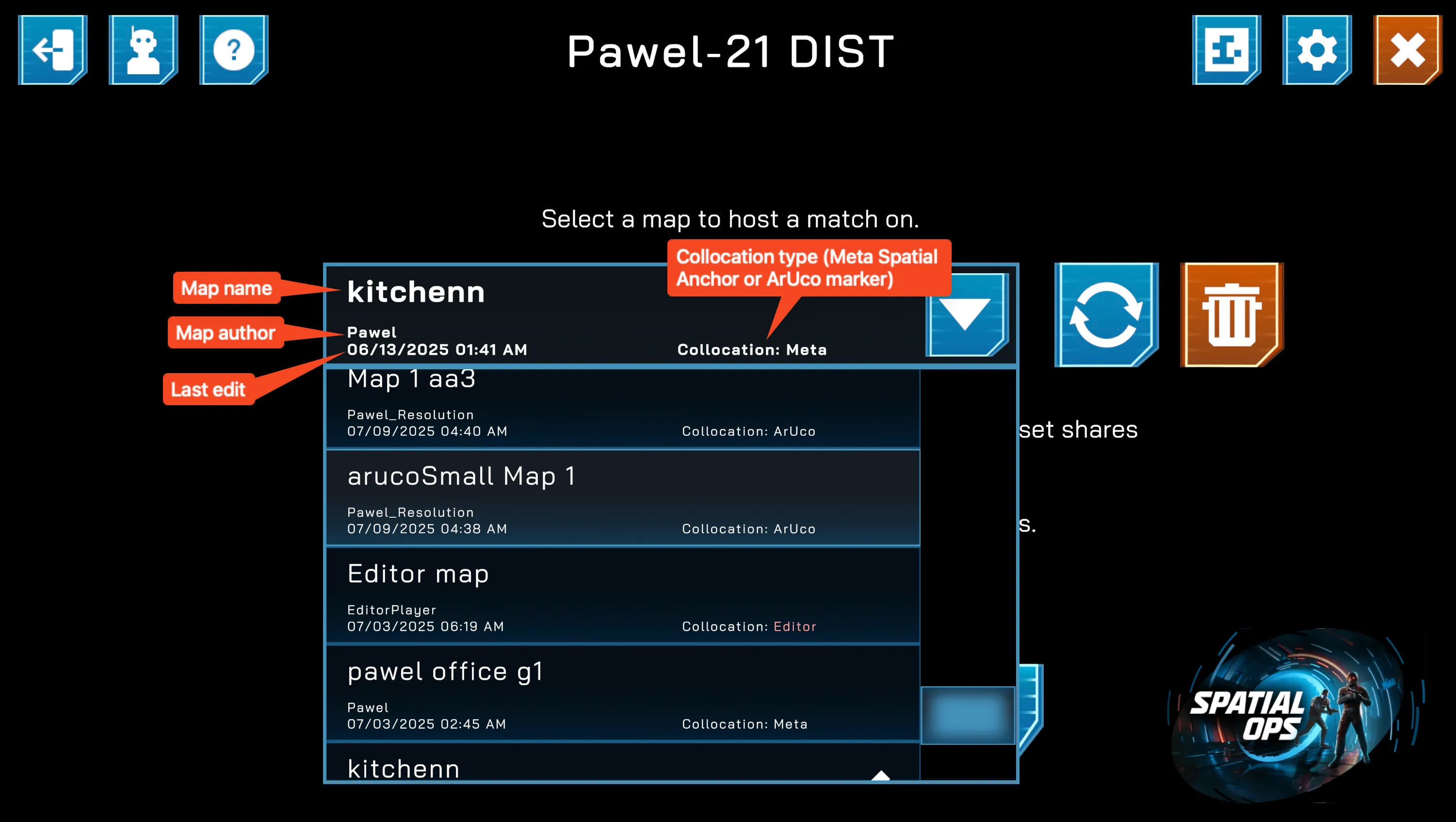
All maps from your linked headsets will now appear in the Manager app’s Maps list.
-
Select your preferred map and start a new session.
-
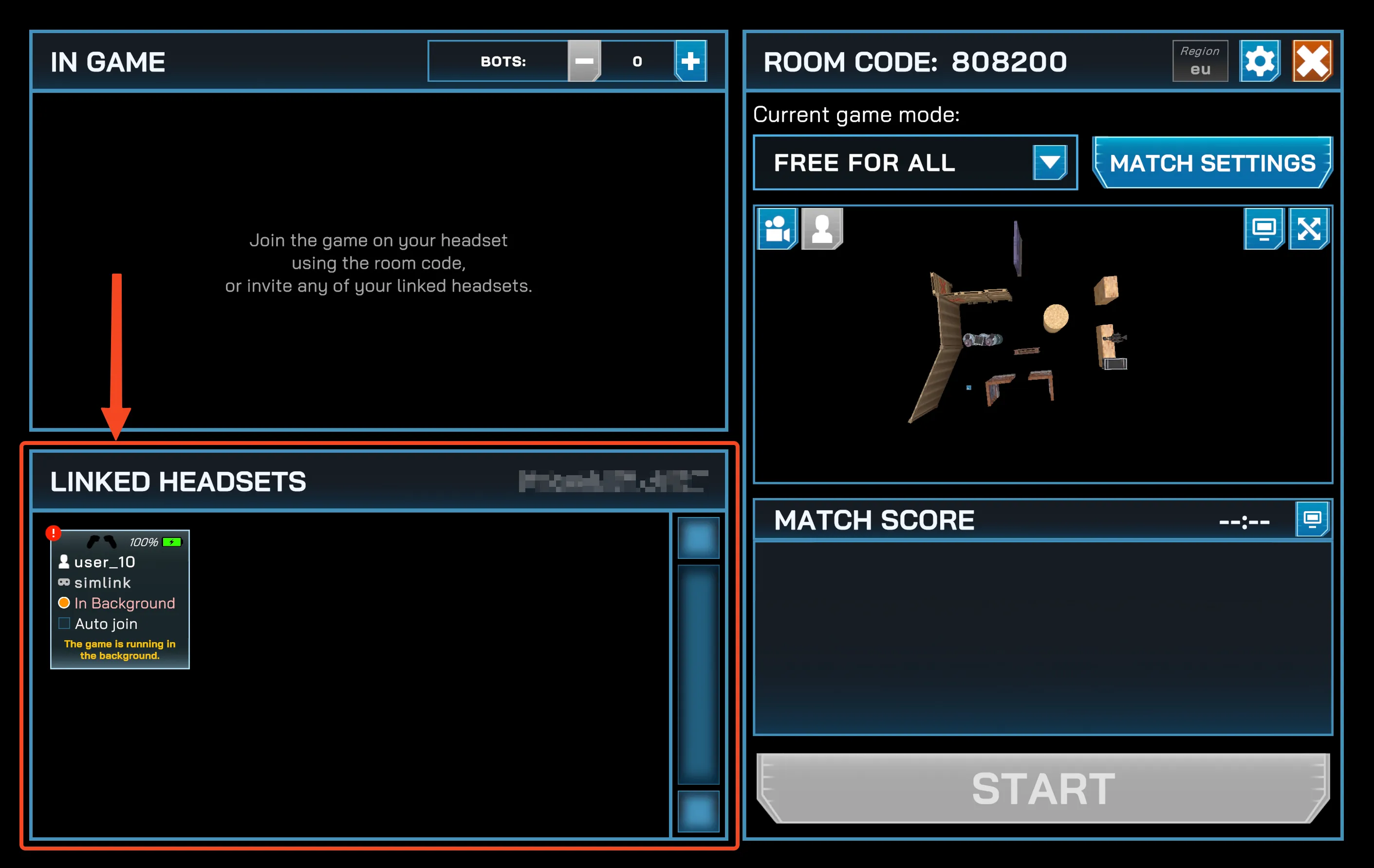
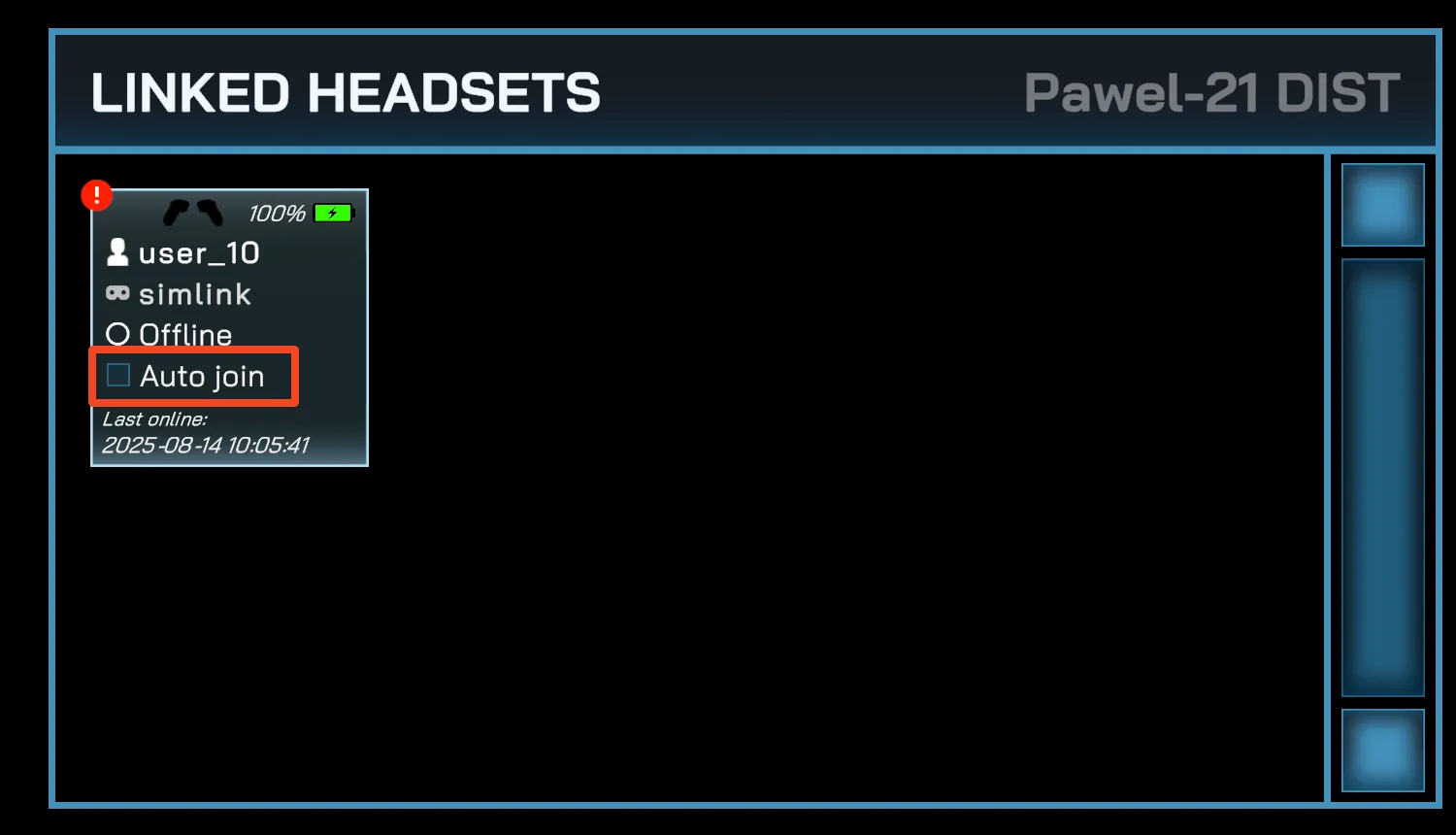
Headsets not currently in the game will appear in the Linked Headsets area.
-
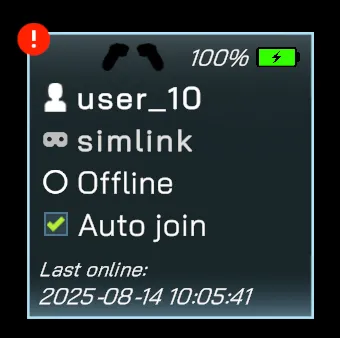
Enable Auto-join if you want headsets to always join sessions hosted by your organization.
- Devices that participated in the previous match are automatically tagged as Auto-join.
- This setting is tied to the specific user account in your organization.
-
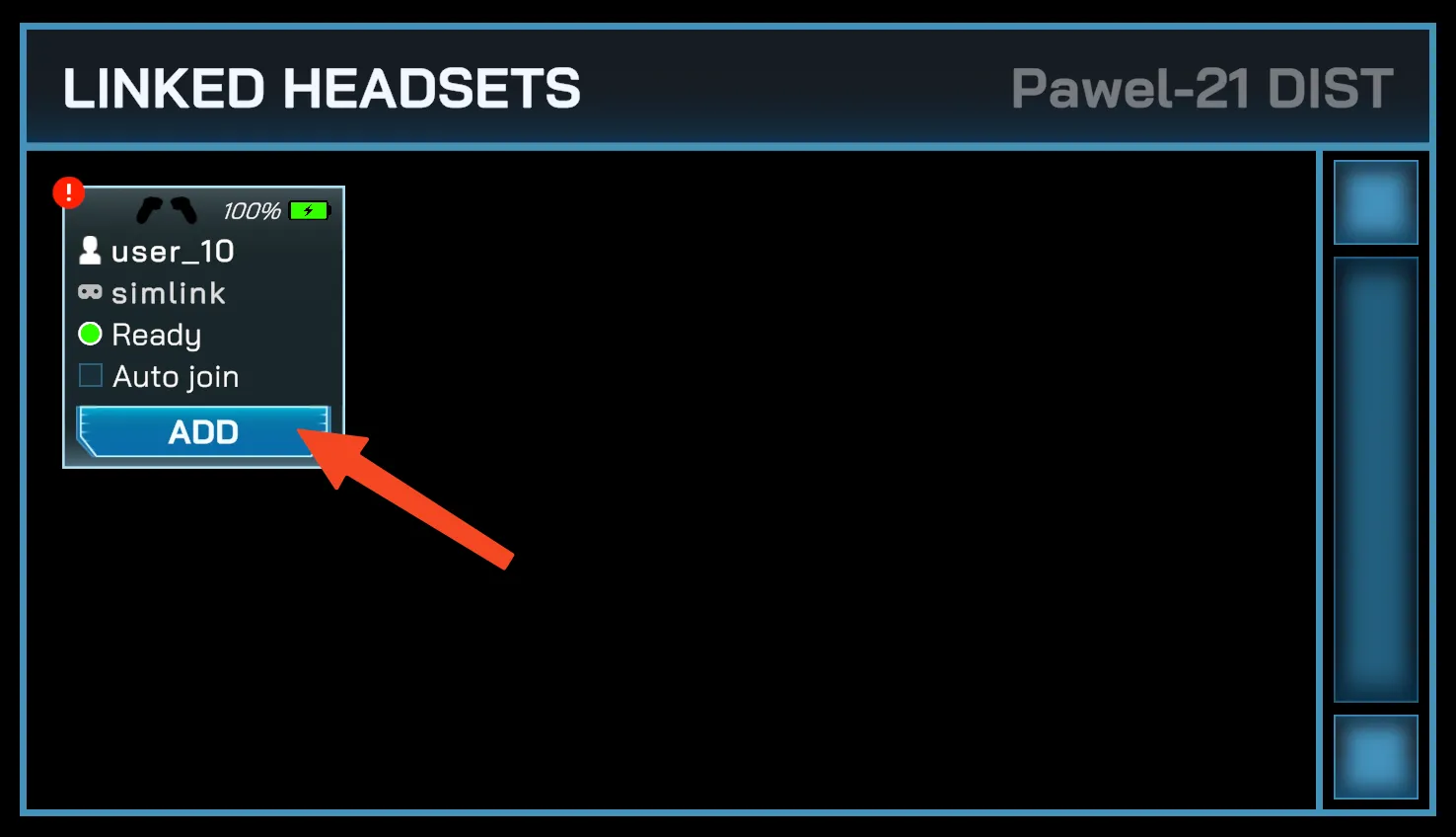
If the device is active, you can also press Add to include it in the current session only.
PICO Enterprise headsets can run the game without a user account signed in. Linking establishes a similar level of authentication, like saying that this is a valid device that belongs to your organization.
-
Confirm that the Manager PC and the headsets are connected on the same network.
See Network Recommendations and Local Network Sync for more details. -
In the Manager, start a session using a default map (in most cases, it is Default Map 1). Take note of the Room code shown in the UI — the headsets use it to connect, at least for the first time.
-
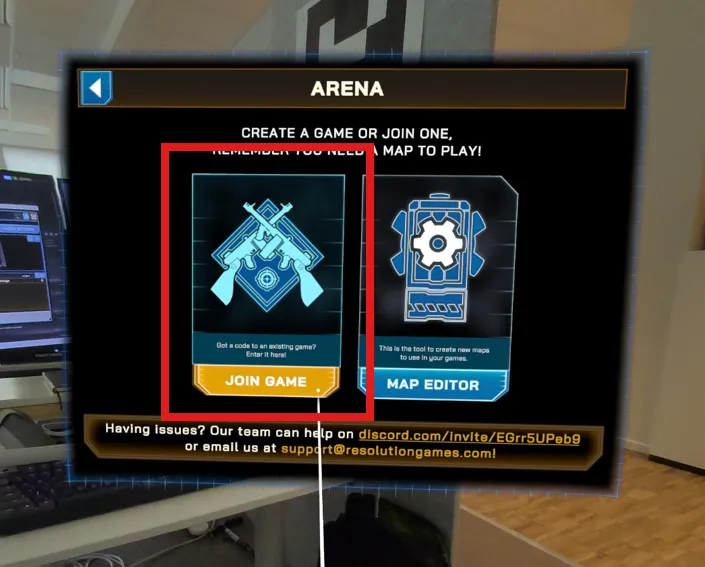
On the headset, launch Spatial Ops and choose Join Game.
-
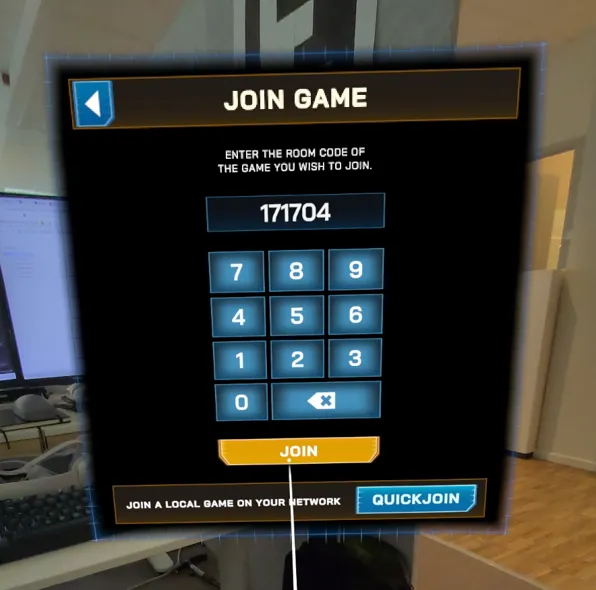
Enter the room code and select Join.
-
If the map looks misaligned or out of place, ignore it for now. The default map is only being used to link the device, not to play.
-
In the Manager, a card for the headset should appear marked as
UNLINKED. Click it to open the confirmation prompt, then confirm to finish linking.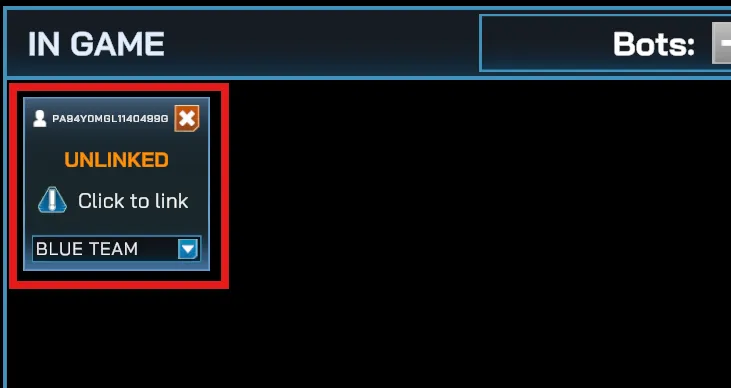
-
Once linked, the headset can be managed directly from the Manager app.
-
Repeat for every headset you want to link, then close the session. You can link more headsets at any time in a later session.