
Billing and Payments
Spatial Ops Manager bills each organization once a month for its active gameplay time. Payments and invoices go through Paddle, our payment provider. Only the organization owner can see and change billing; other managers can see usage.
How billing works
Section titled “How billing works”- Billing is a usage-based plan with no fixed fee. Saving a payment method costs nothing, and you pay only for months that go past the free minutes.
- Each month, an organization’s first 1,500 minutes of active gameplay are free. Minutes from all of its locations count together.
- If a month goes past 1,500 minutes, the whole month is billed, not only the minutes above 1,500.
- The rate per active headset-minute depends on the country in your billing information, normally your venue’s country. You see it when you choose the country, and every country’s rate is listed in the Licensing section of the Spatial Ops Manager home page.
- After a month ends, its charge is added to your monthly bill, normally the next one. Your bills fall on the day of the month you saved your payment method, and Paddle takes each payment from it automatically.
Set up billing
Section titled “Set up billing”The organization owner sets up billing once, and it covers every location. After you create an organization, the Manager portal shows Set up billing. You can also start at any time from Invoicing → Billing Method by selecting Add payment method; if you have not entered billing information yet, you are asked to do that first.
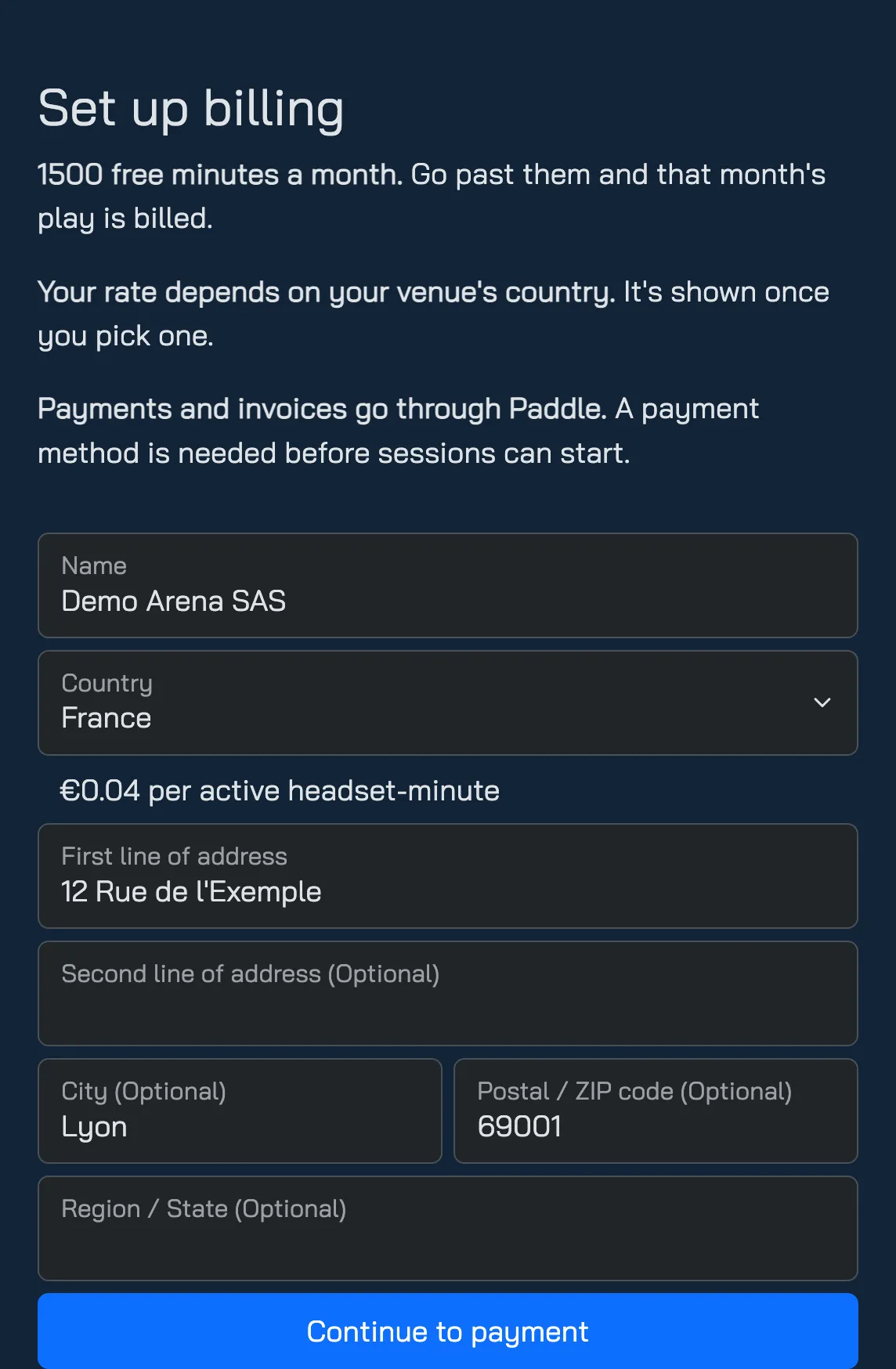
- Fill in your billing information: name, country and address. The rate for your country appears under the country field.
- Select Continue to payment. Paddle’s checkout opens.
- Choose a payment method and save it — for a card, enter its details and select Save card.
- The portal confirms that billing is set up. Select Continue.
The checkout shows the usage-based plan as Free, with €0.00 due today: nothing is charged when you save the payment method. Paddle keeps it for your monthly bills.
If your business has a VAT number (for example in the EU), select Add VAT number in the checkout and enter it before saving. To add or change it later, contact licensing@spatialops.com.
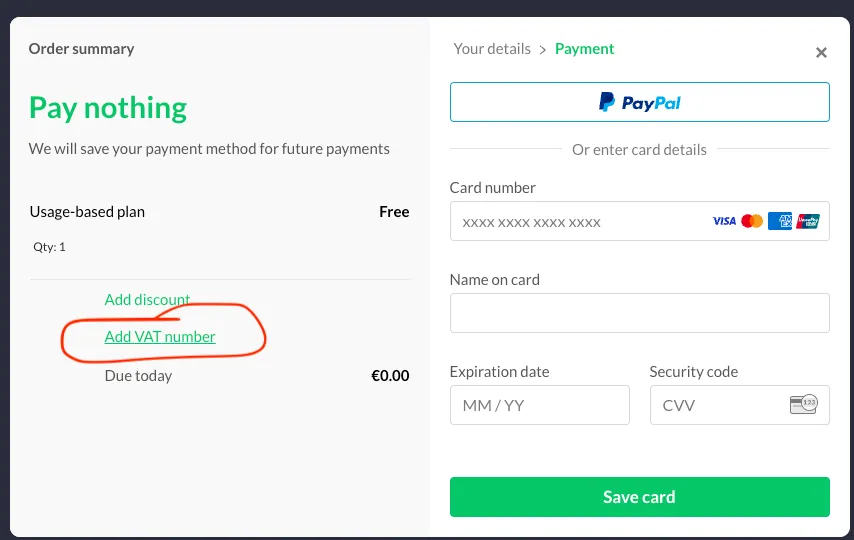
The checkout offers the payment methods Paddle supports in your country, such as cards and PayPal. We are working with Paddle to add Alipay and WeChat Pay.
Paddle lists every method it supports in Which payment methods do you support?. Methods marked there as one-time only cannot be used, since Spatial Ops billing is a subscription. If another method on that list would suit your venue, tell us at licensing@spatialops.com.
If your country has no rate, the billing form says so: contact licensing@spatialops.com.
Track usage and the expected cost
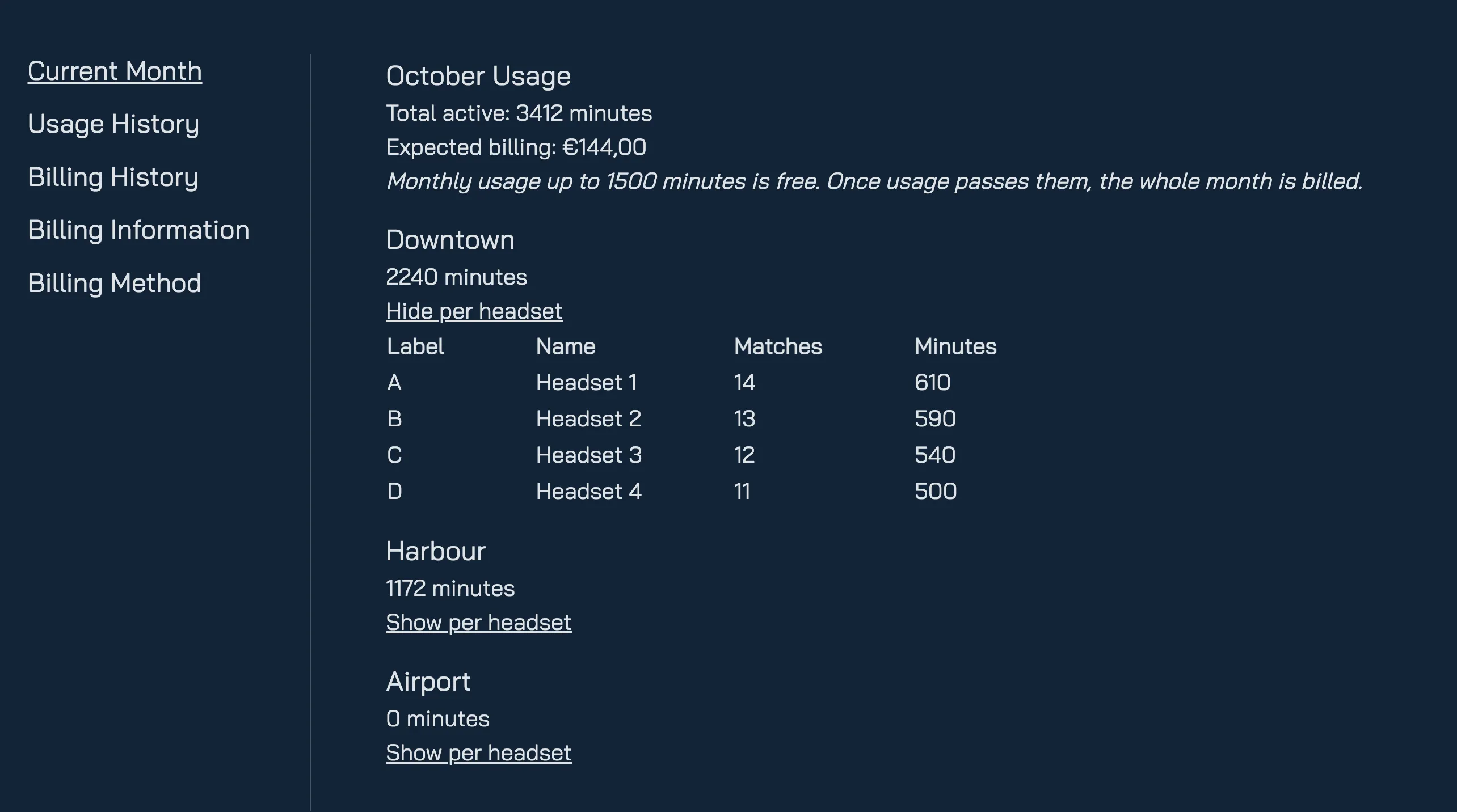
Section titled “Track usage and the expected cost”Invoicing → Current Month shows the month so far:
- Total active — active gameplay minutes across all locations.
- Added minutes — shown only if Spatial Ops support has added minutes to your month.
- Expected billing (owner only) — an estimate of the month’s charge, including tax where it applies. It stays at zero while the month is within its free minutes.
- Each location’s minutes. Select Show per headset to see each headset’s matches and minutes.
Invoicing → Usage History lists usage month by month for each location, with minutes and the number of devices used.
Invoices
Section titled “Invoices”Paddle creates your invoices. Invoicing → Billing History lists them:
- Next bill — the amount waiting to be billed on your next billing day.
- Paid, Unpaid, Overdue — the state of each past invoice. Paid invoices have a PDF link to download the invoice; it can take a moment to appear after payment.

Paddle also emails each invoice to the organization owner, at the email address they signed in with when billing was set up. Changing your billing information does not change that address; to use a different one, contact licensing@spatialops.com.
Change your billing details
Section titled “Change your billing details”- Name and address — open Invoicing → Billing Information, select Edit billing information, make your changes and select Save (or Cancel). Changing the country changes the rate.
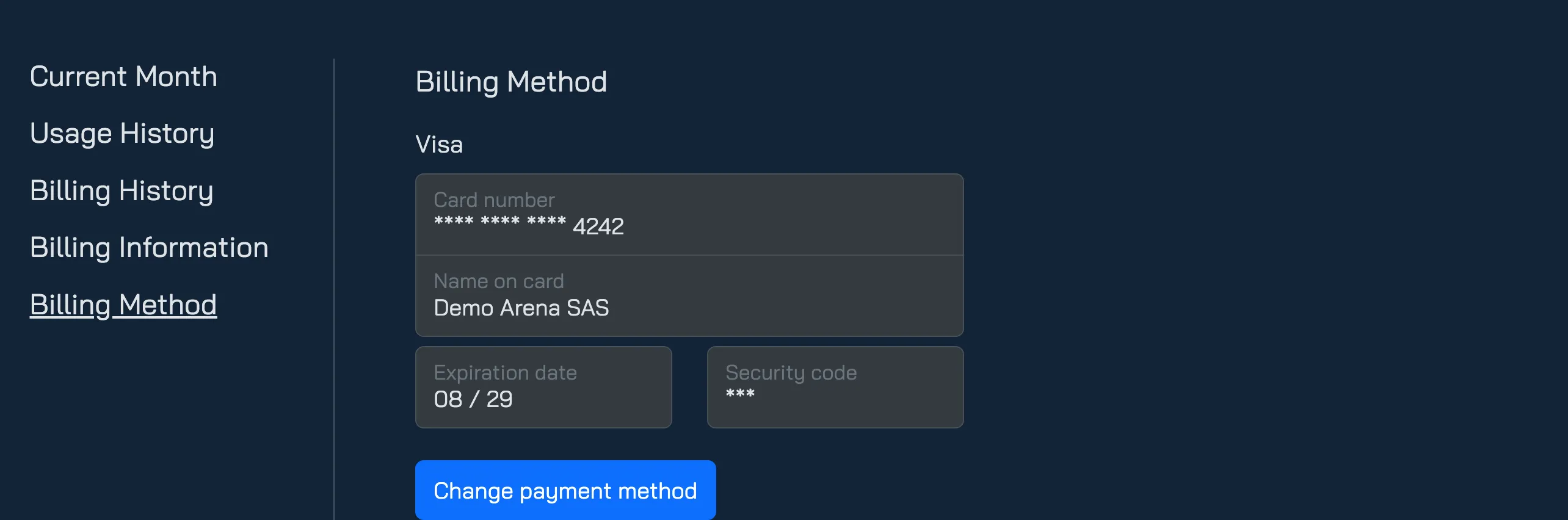
- Payment method — open Invoicing → Billing Method, which shows the payment method on file, and select Change payment method to replace it through Paddle’s checkout.
- VAT number or invoice email — contact licensing@spatialops.com.
If a payment fails
Section titled “If a payment fails”If Paddle cannot take a payment, the invoice shows as Overdue in Billing History. Paddle emails you a link to pay it, which opens a payment page on manager.spatialops.com where you can pay without signing in. To keep it from happening again, replace the payment method under Invoicing → Billing Method.
Billing notices
Section titled “Billing notices”A banner at the top of the Manager portal tells you when billing needs attention.
When billing is set up and a month passes 1,000 minutes, the organization owner sees a reminder of how many of the 1,500 free minutes the month has used, since going past them bills the whole month. Select Got it to close it; it does not come back in later months.
Spatial Ops can also pause sessions for an organization whose billing needs attention. While sessions are paused, the Manager app cannot start sessions at any of the organization’s locations, and one of these banners says why:

| Banner | Why | What to do |
|---|---|---|
| This organization is approaching its free monthly minutes… | No billing set up, and the month has reached 1,000 minutes. Sessions are not paused yet. | Set up billing before the month reaches 1,500 minutes |
| Add a payment method to start running sessions. | A new organization without a payment method | Set up billing |
| You’ve used your free monthly minutes. Set up billing to restore access. | No billing set up, and the month went past 1,500 minutes | Set up billing |
| Your latest payment is overdue. Update your billing details to restore access. | An invoice has not been paid | Pay the invoice, or change the payment method |
Managers who are not the owner see these banners too, with a note that only the organization owner can act on them.